Apps are only available for iPhone
Our Fred Books apps aren’t in the regular App Store yet. Instead, they’re available through Apple’s TestFlight system, which lets us share apps in development. Every staff member is welcome to join — there are no restrictions.
This guide walks you through the process of getting set up.
The guide may look long, but that’s because there’s plenty of photos to guide you along, this process only takes a couple of minutes!
1) Request an Invite
Let Carlo, Larry, or Ryan know you’d like to join.
Once we send the invite, you’ll get an email from Apple Developer.
2) Check Your Email
Look for an email titled “You’re invited to join a development team.”
- Tap Accept Invitation in the email.
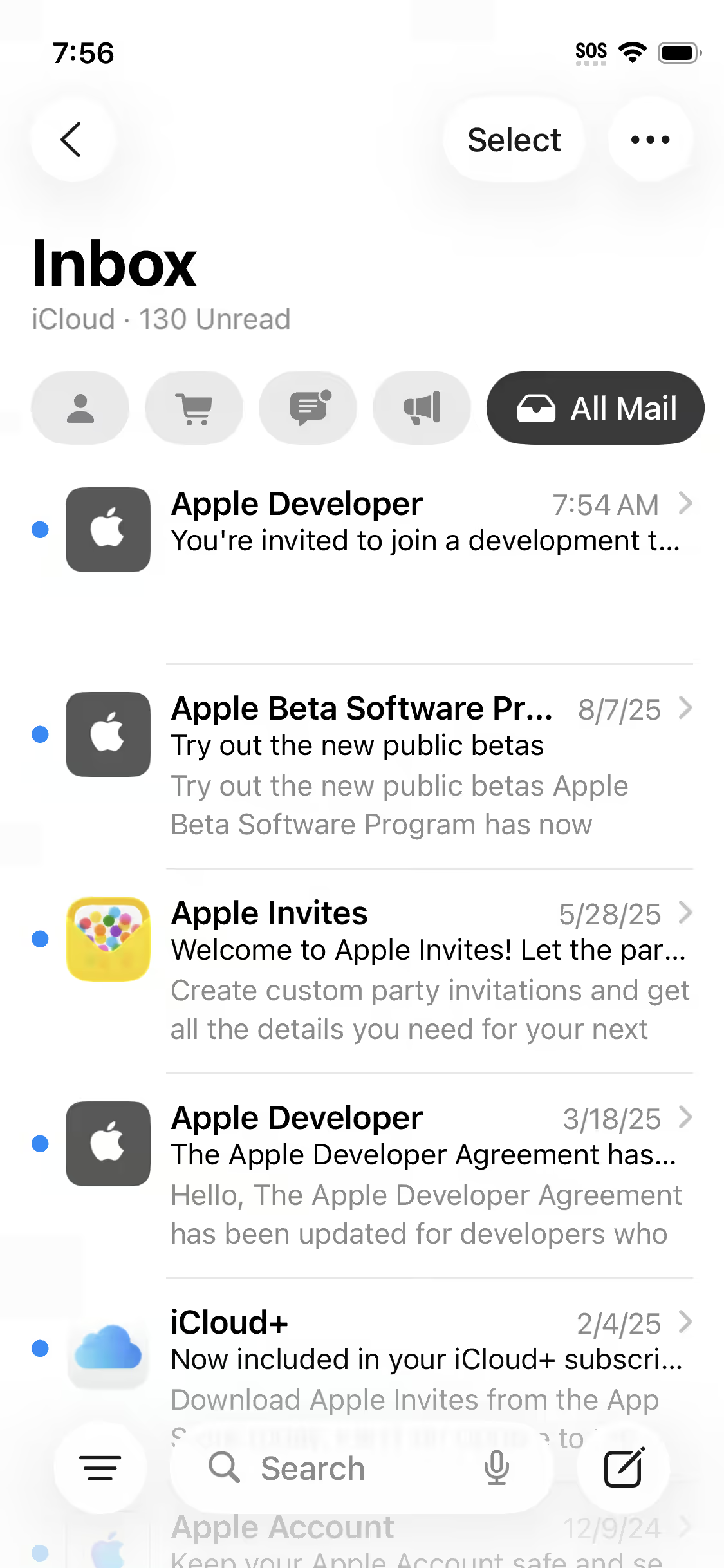 Look for the email from Apple Developer titled You’re invited to join a development team.
3) Sign In With Your Apple Account
You’ll be taken to Apple’s website. Sign in with your Apple ID.
- You may use Passkey (which is easiest if it’s available), or your Apple ID password.
- Scroll down to accept the Apple Developer Agreement by checking the box and pressing Agree.
When you see a page that says “Get Started”, you’re all set. You can close it.
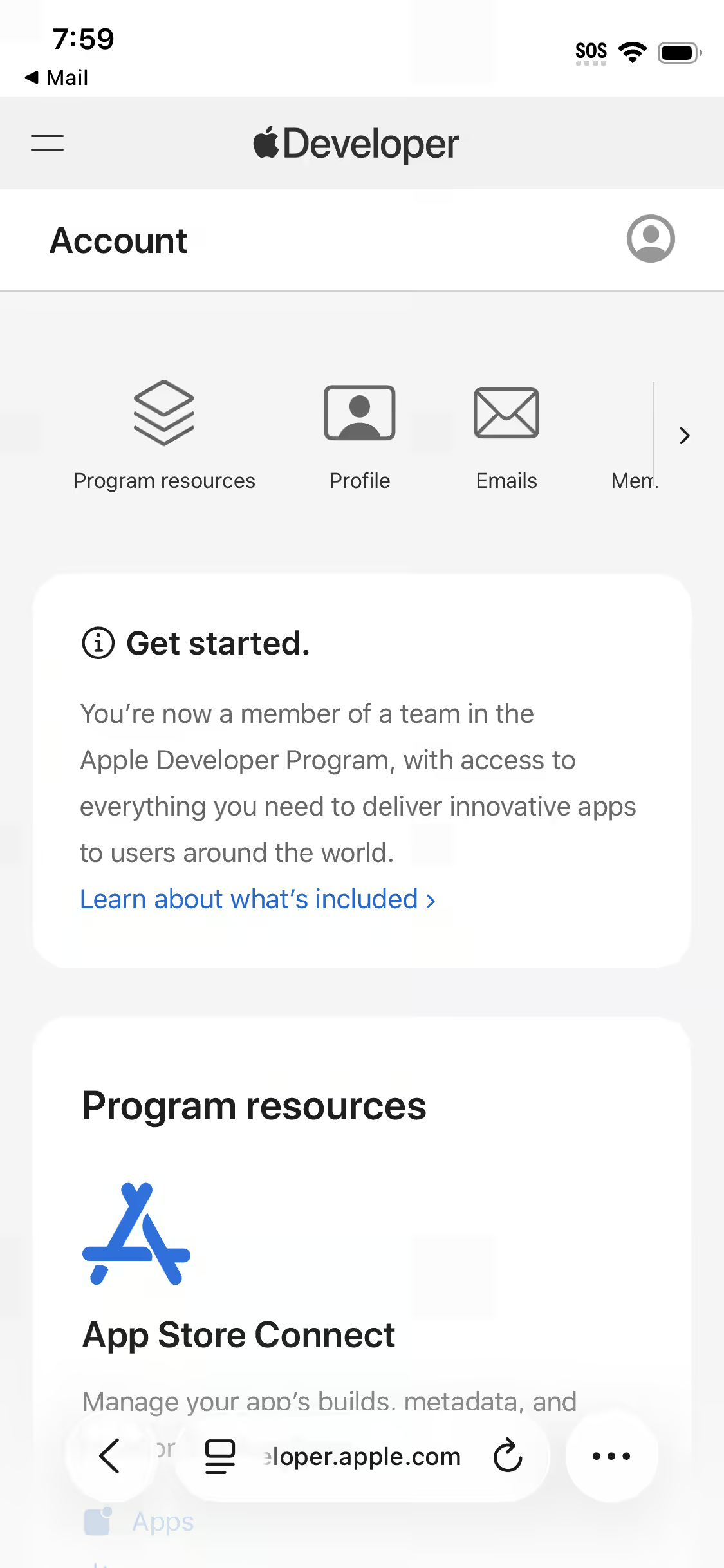 Once you can see this screen, you can close this page and return to your home screen
4) Wait for the App Invite
Shortly after, you’ll get a new email from TestFlight that says:
“Fred Books, LLC has invited you…”
Open this email and tap View in TestFlight.
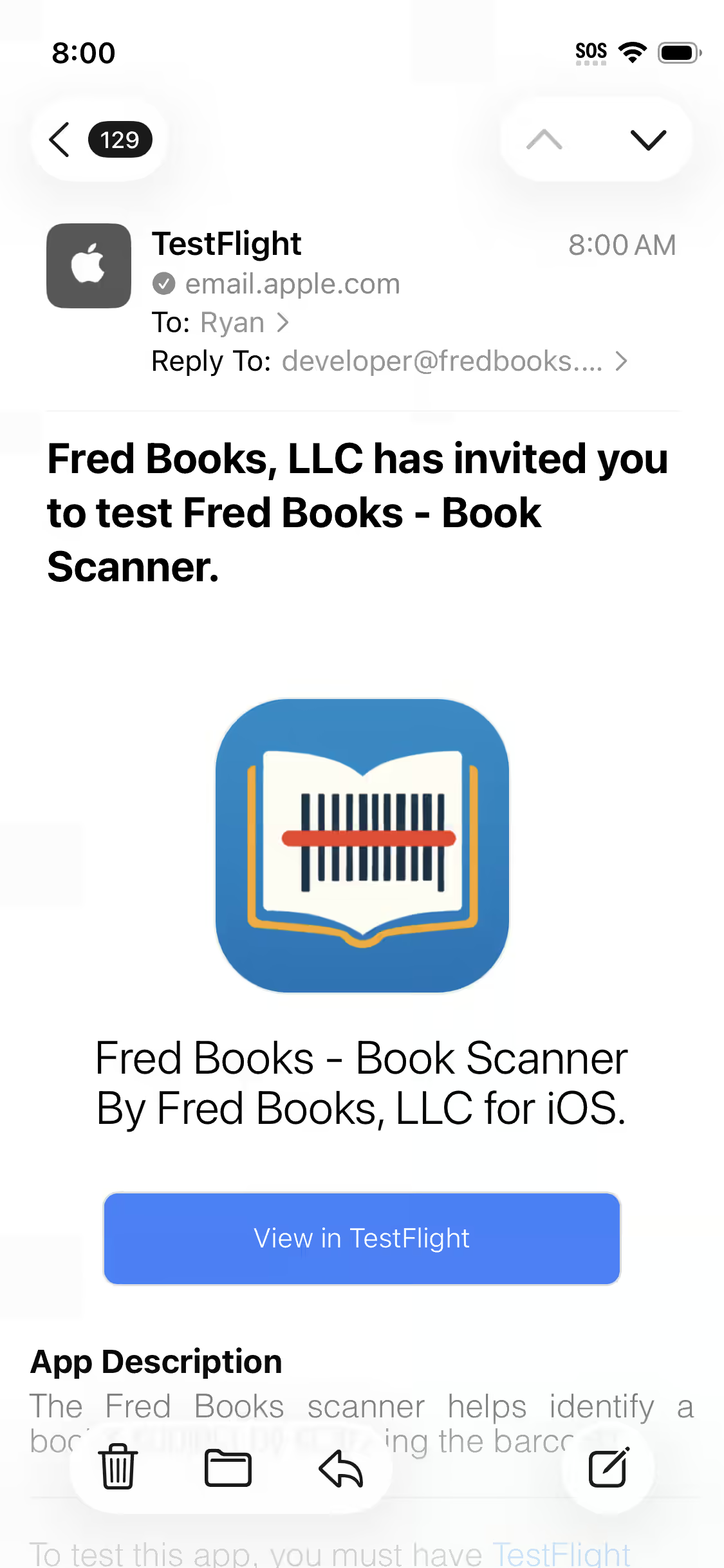 If you already have TestFlight installed it will open TestFlight instead
5) Install TestFlight
If you don’t already have it, you’ll be guided to download the TestFlight app from the App Store.
When you open TestFlight for the first time:
- Allow Notifications (so you’ll know when an app update is available)
- Tap Continue on the welcome screen
6) Install the Fred Books App
Go back to the email you received in step 4 and tap View in TestFlight again.
You’ll now see the Fred Books app screen in TestFlight.
That’s it! 🎉
The app will appear on your iPhone like any other app. Whenever we release updates, TestFlight will automatically let you know so you always have the newest version.
If you are invited to another app, simply follow steps 4, 5, & 6 again.